
Flash or update your board

Step-by-Step Guide for the BitcoinPuzzlePirates

  • 13 min read

Introduction – Welcome aboard, Crypto Buccaneer!

With BitcoinPuzzlePirates, you set sail to uncover the hidden treasures of the Bitcoin world. Whether you’re searching for Bitcoin puzzles, generating private keys for your wallet addresses, or recovering lost seed phrases, this tool will be your loyal companion on the high seas. Instead of gold and silver, you’re hunting digital treasures, valued by some even more than a chest full of doubloons!

Beware, sailor!
BitcoinPuzzlePirates isn’t your typical treasure map navigator. It’s a guide and a tool for anyone wanting to understand how cryptography and blockchain work. Plus, it gives you a practical way to verify or repair your wallets and seeds. So, grab your device and get ready—it’s time to conquer the digital ocean!

Jump Straight to the Point!

Our anchor links take you directly to the key sections of the BitBeard guide. No endless scrolling – quickly find the info you need!

Just click and go – setting up has never been easier! 🏴‍☠️

Requirements for Your Adventure

To start your journey as a crypto-sea pirate, you’ll need:

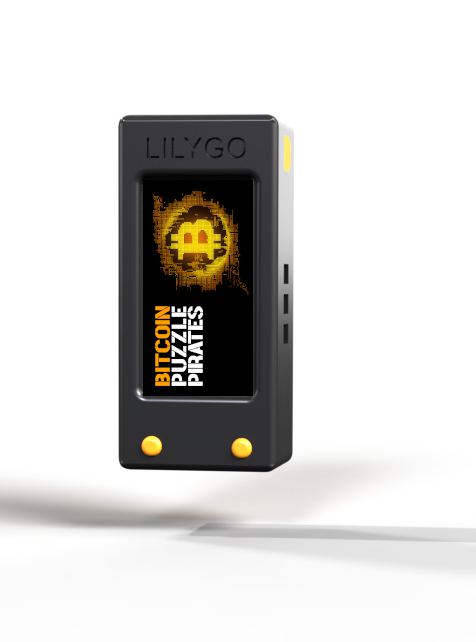
  • A compatible board – The best choice is the LILYGO T-Display S3.
  • A USB-C cable – To connect your board to your PC.
  • A PC – To flash the firmware and perform further configurations.
  • Internet access – To visit the flash page and activate your treasure.
  • A USB-C charging cable and a phone charger (at least 5V / 1A, max. 5W) to operate the device.
  • A license – Available for purchase at SHOP.

Compatible Boards:

  • LILYGO T-Display S3
  • LILYGO T-QT pro
  • LILYGO T-Display 1.14
  • LILYGO T-Dongle S3
    … and many more!

Step 1 – Flash the Firmware on Your Device

Flashing your firmware is simple. Our pirate workshop has created a special tool to get your device shipshape in just a few clicks.

Here’s how:

Step 1.1 Go to the Flash Page

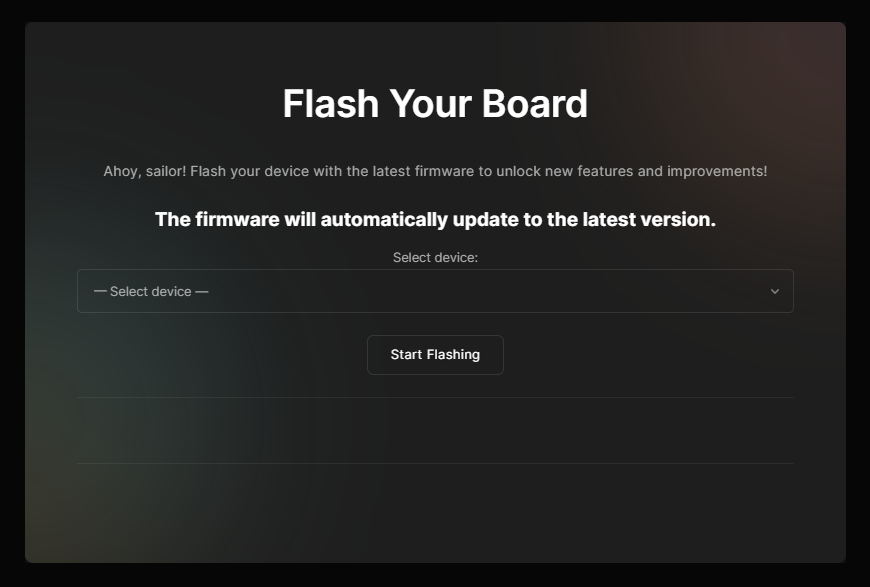
Open bitcoinpuzzlepirates.com/flash-your-board in the browser or click on the “flash Page” button. The button takes you directly to the “Flash your board” page with a new tap.

Step 1.2 Connect Your Board

Use a USB-C cable to connect your LILYGO board to your PC.

Step 1.2 Connect Your Board

Use a USB-C cable to connect your LILYGO board to your PC.

Step 1.4 Start Flashing!

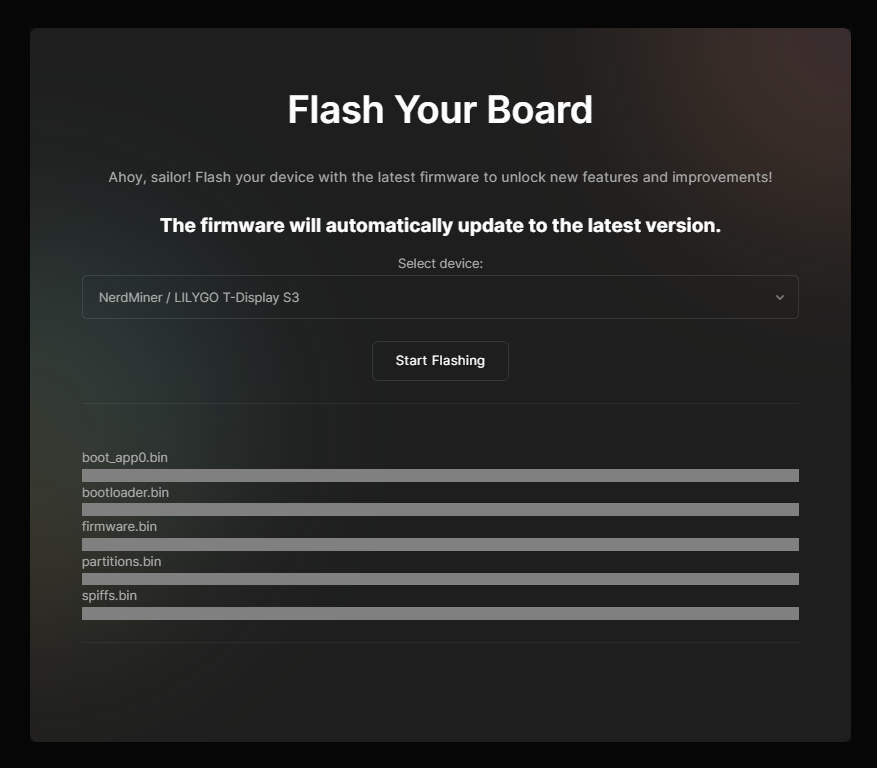
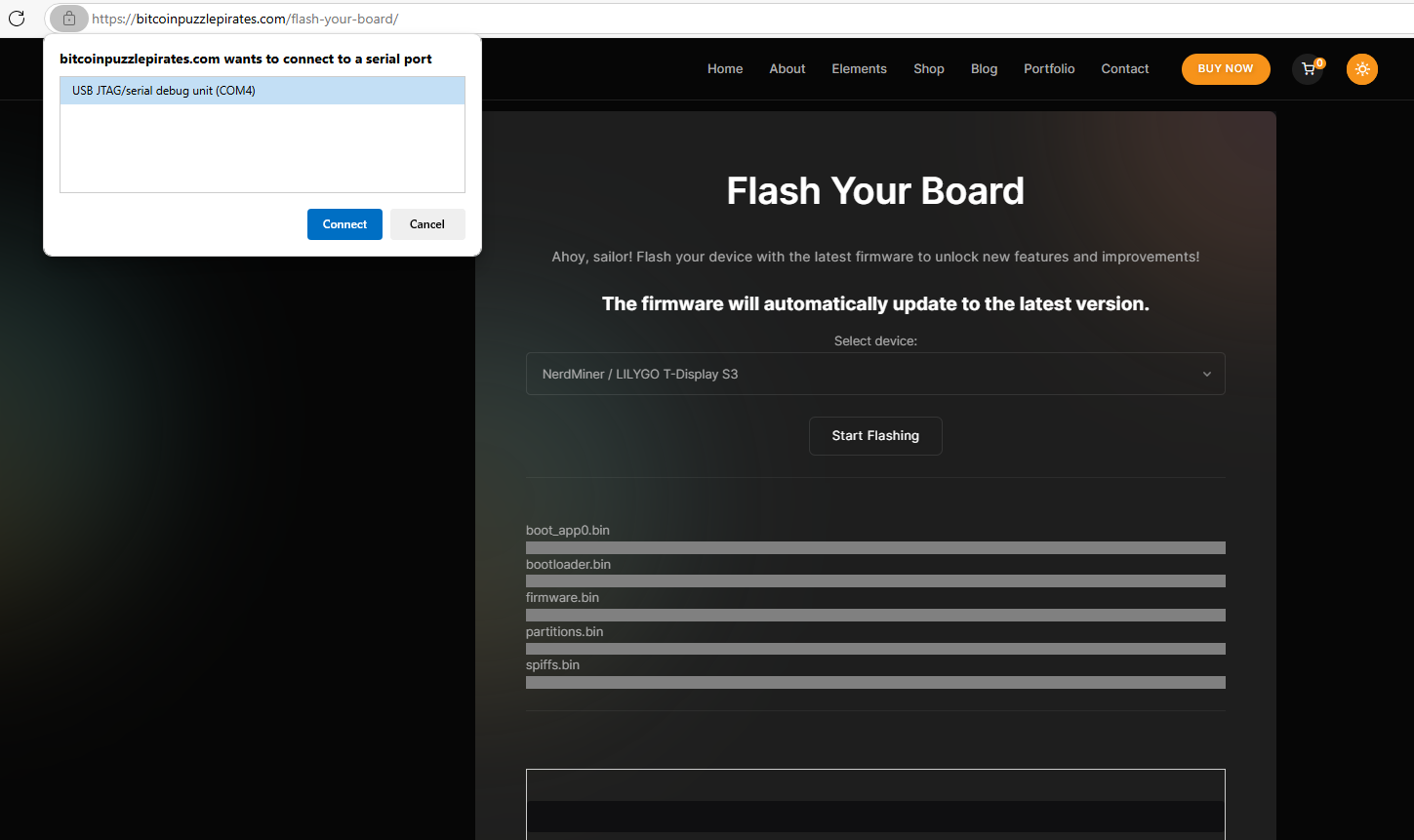
Click “Start Flashing.” A window will open, showing a selection of devices connected to your computer.

Step 1.5 Select Device and Confirm

Select your connected board from the list and confirm. The flashing process will then begin.

Step 1.6 Wait and Enjoy the Success Message

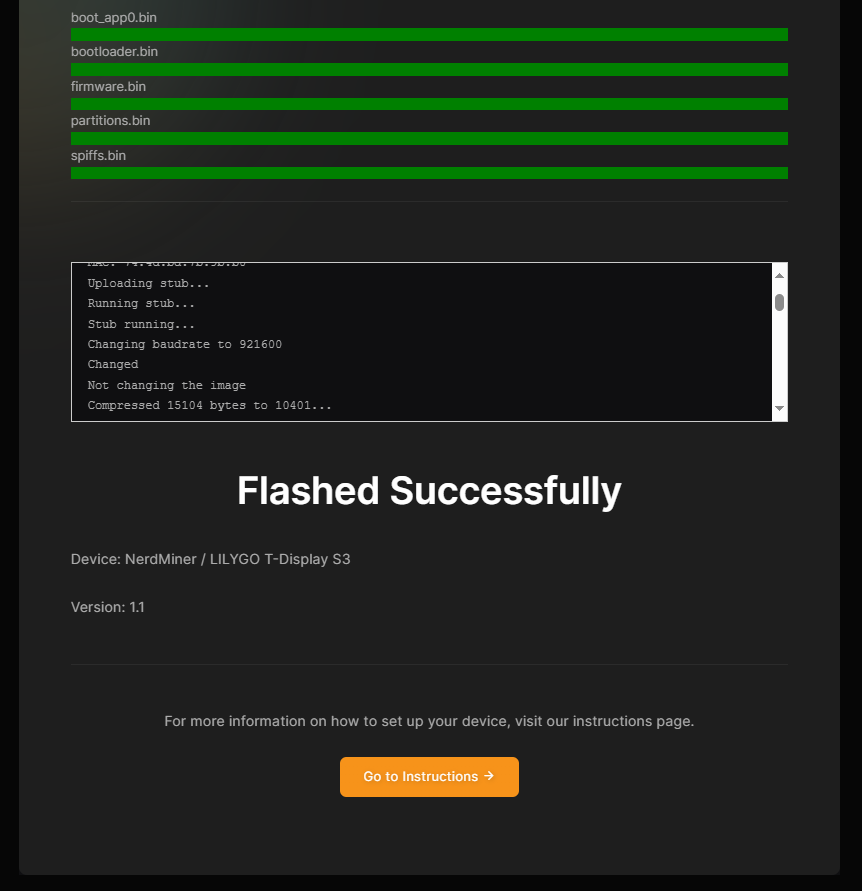
Within minutes, the firmware will be installed on your device. Once you see the message “Successfully flashed…,” your device is ready for use!

Update Notice

The page bitcoinpuzzlepirates.com/flash-your-board always ensures the latest firmware version is installed. If there’s an update, simply re-flash your device via the same page – easy as pie for any crypto pirate!

Important Notes for macOS Users

If you’re using a Mac, you may need an additional VCP driver to have your device recognized properly.
We recommend downloading the official drivers provided by your board’s manufacturer. Follow the installation instructions to ensure your device is detected correctly.

Step 2 – Configure the BitBeard

After Flashing the Firmware

Before setting sail, make sure your BitBeard is properly powered.

You can use a standard phone charger with a USB-C cable.
Recommended power supply:

  • 5V / 1A – 2A (typical phone charger)

  • Maximum: 5W

⚠️ Important:
Do not use high-power or fast-charging adapters (e.g. Quick Charge, Power Delivery with high wattage).
Extreme fast chargers are not required and may cause unstable behavior.


After the firmware is successfully installed, the device will display a screen asking you to connect your phone to the WiFi network:

“Connect to BitBeard”

This is the first step to prepare your digital treasure hunter.


Step 2.1 – Connect to the Device

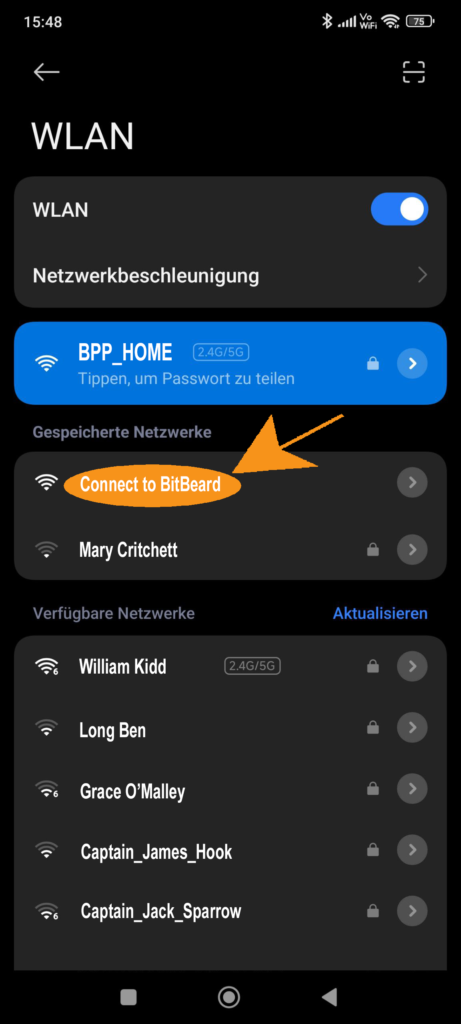
  1. Open the WiFi settings on your phone.

  2. Connect to the network “Connect to BitBeard”.

  3. The configuration page will open automatically.

If the page does not open automatically:

  • Disable mobile data, or

  • Scan the QR code shown on the device screen.


Step 2.2 – Configure Your Home WiFi

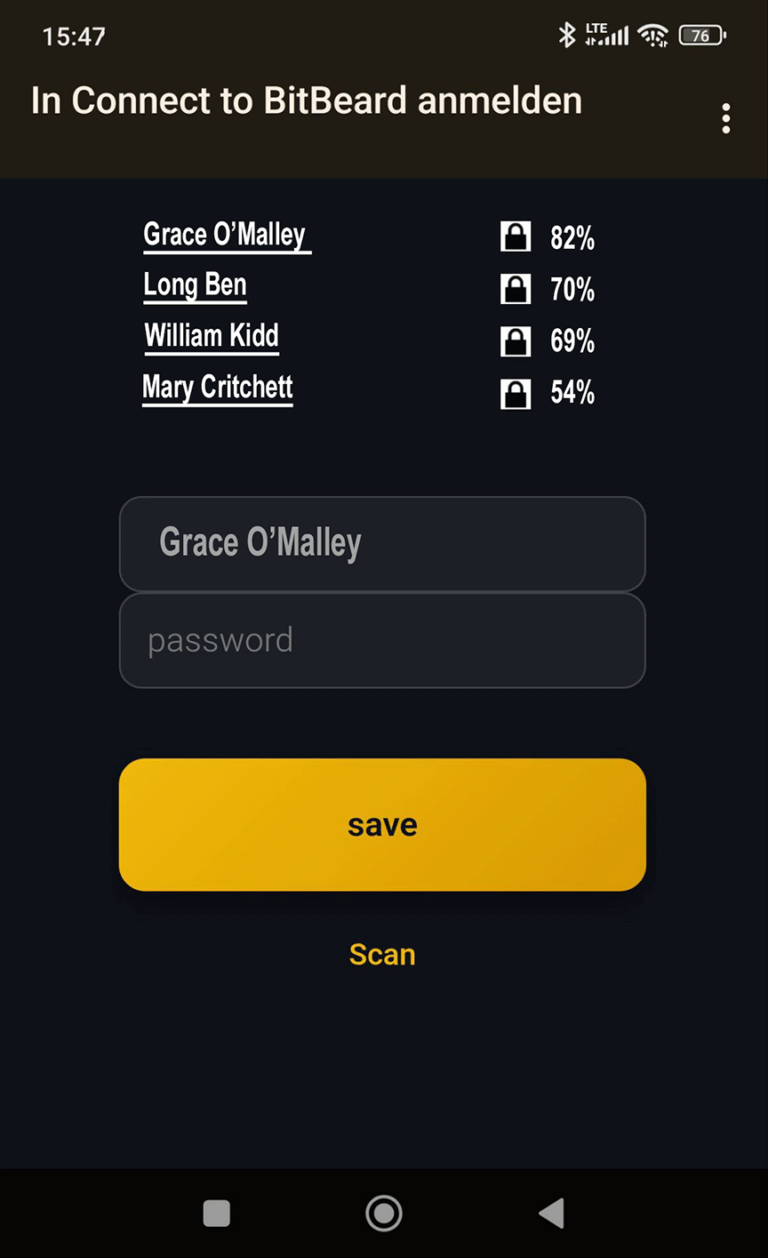
  1. You will be taken directly to the WiFi configuration page.

  2. Select your home WiFi network from the list.

  3. Enter your WiFi password.

  4. Click “Save”.

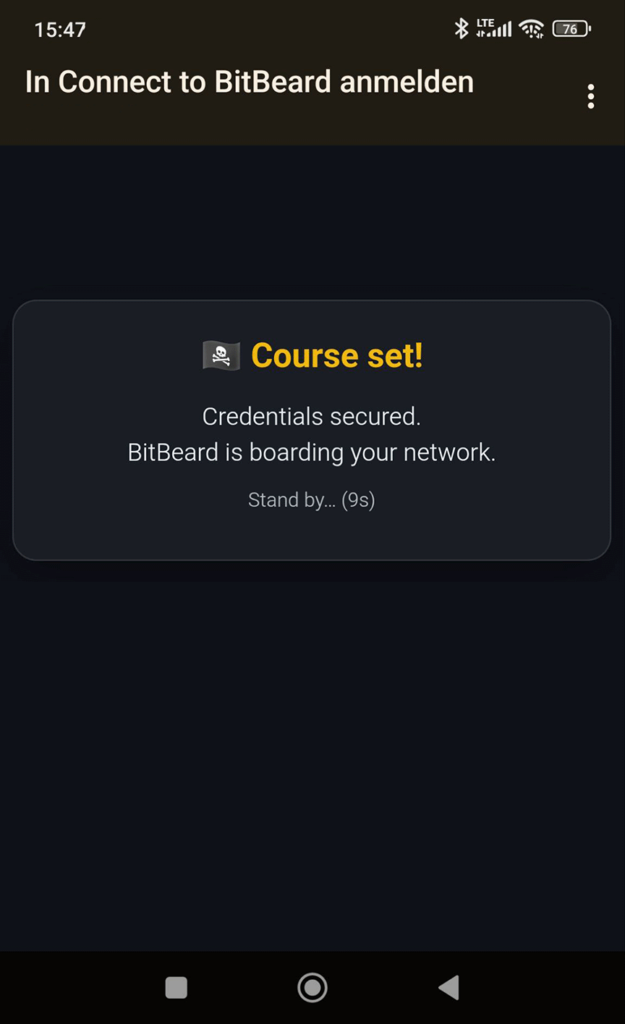
The BitBeard will now try to connect to your network.
Once successful, the device will restart automatically and your phone will switch back to your home WiFi.

🏴‍☠️ Course set – BitBeard is ready to sail.

Step 3 – Enter License Key

Step 3.1 Enter License Key

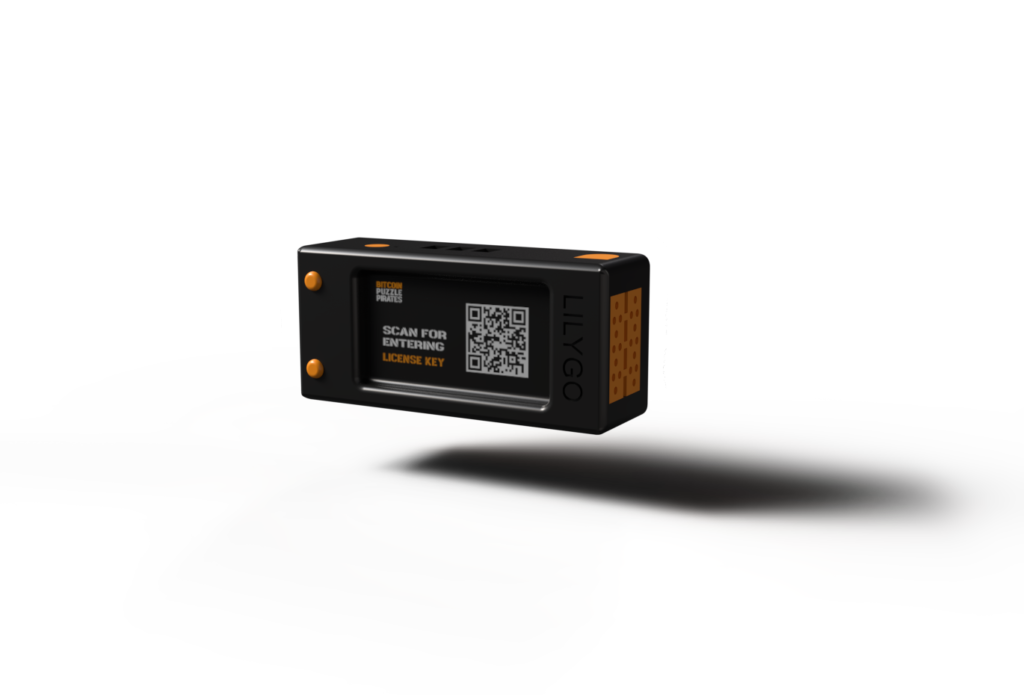
After restarting, the device will display a QR code. Scan it with your phone to access the license key entry page.

Purchase License:
If you don’t have a license yet, purchase one at bitcoinpuzzlepirates.com/shop.

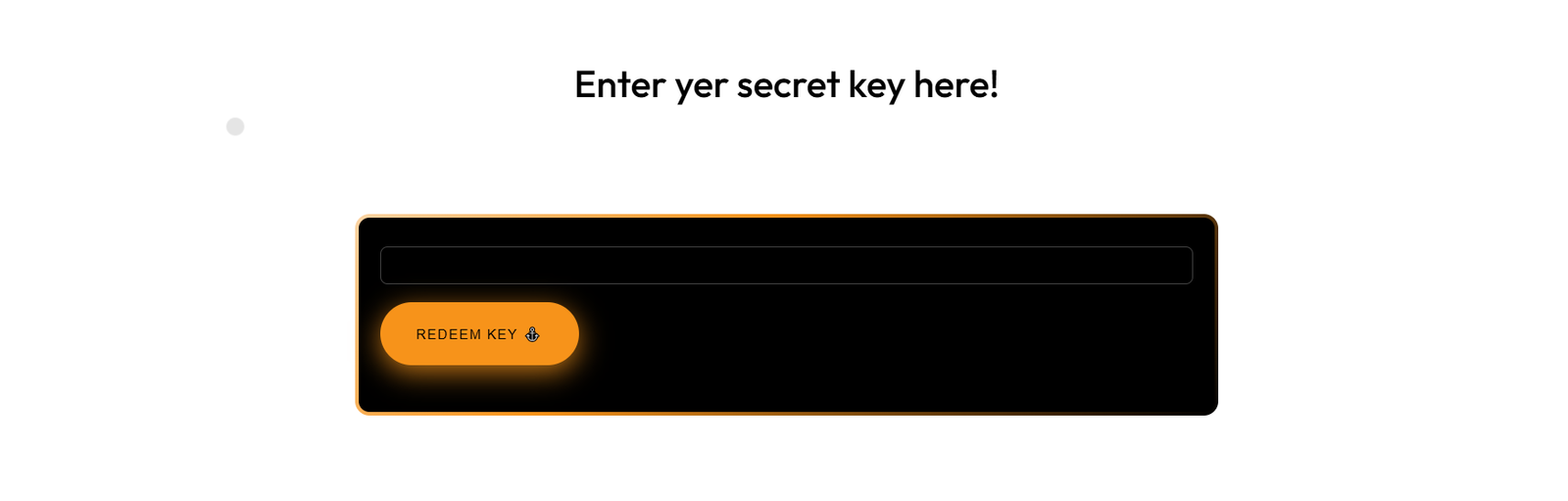
You have acquired a license key? Enter it on the “License Key” page and click “Submit.” You can click on “Set sail to the key entry field ⛵” on the page to go directly to the license key entry section.
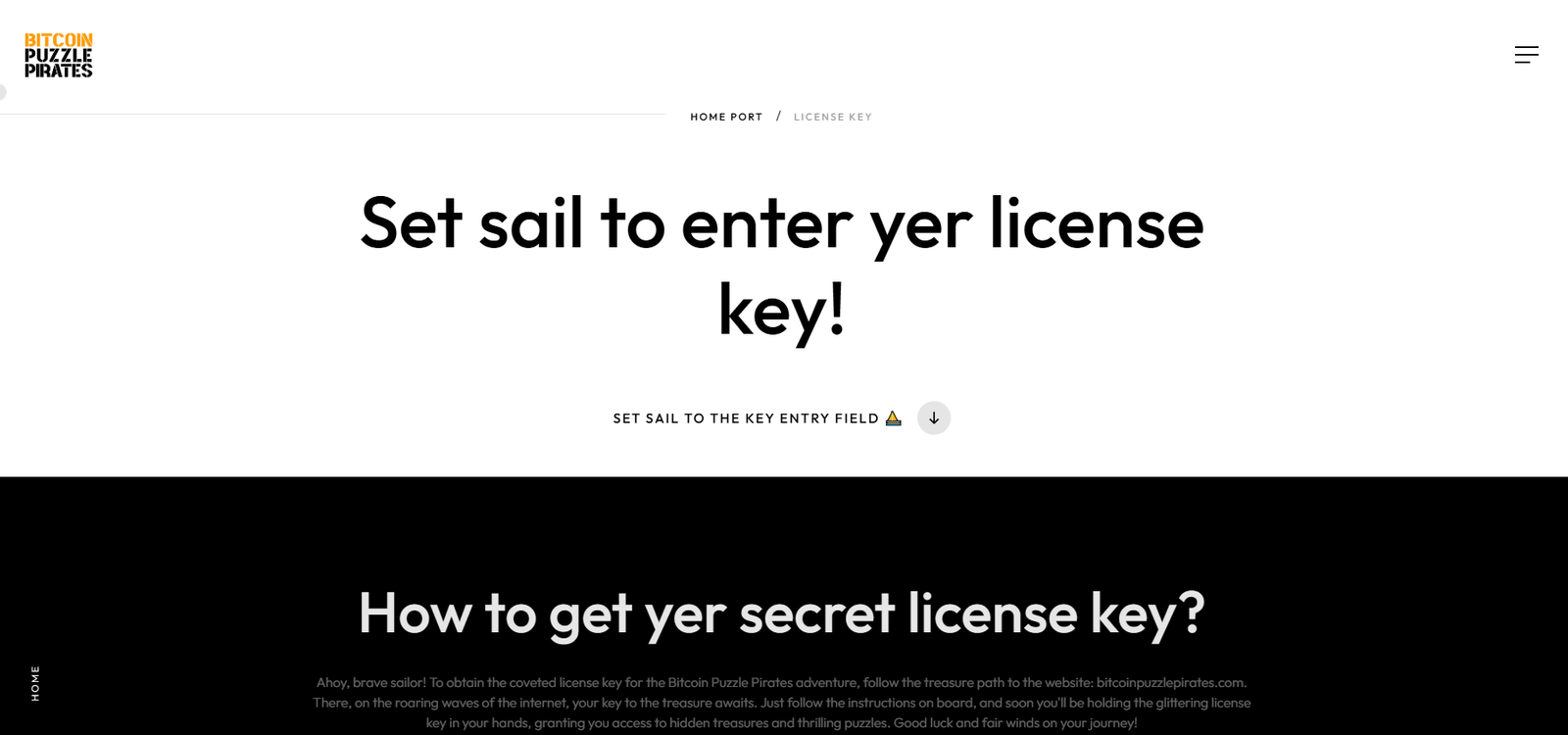
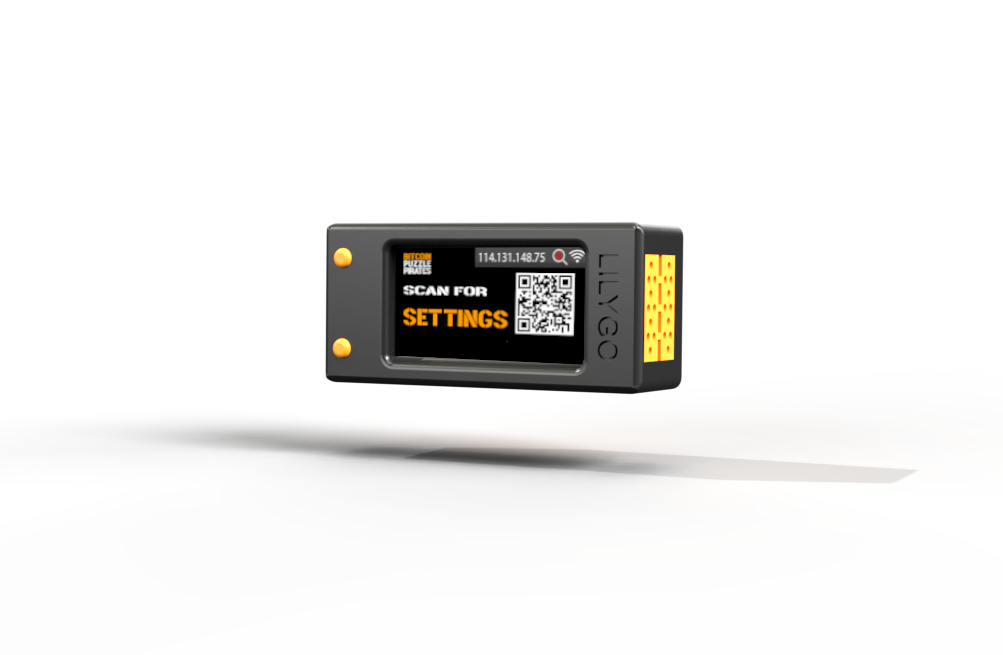
After redeeming the key, you will automatically be redirected to the BitBeard homepage, and the “SETTINGS” screen will be displayed on the BitBeard. If you are not redirected automatically, scan the QR code on the BitBeard to access the BitBeard homepage.

Step 4 – BitBeard Homepage

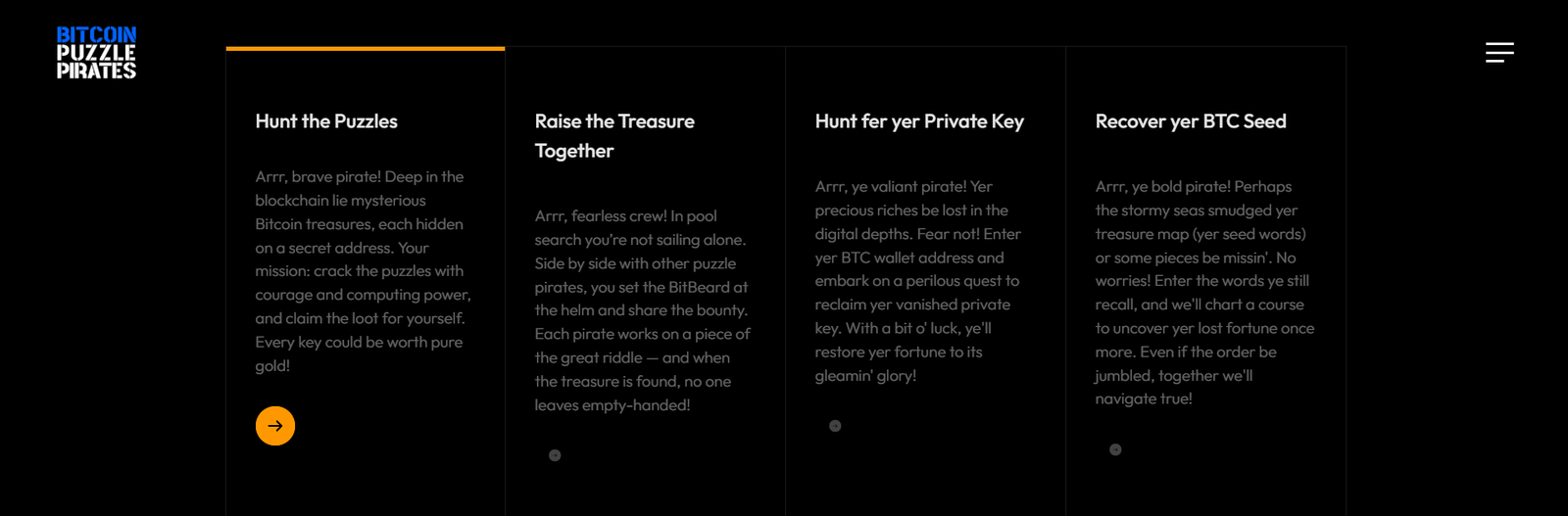
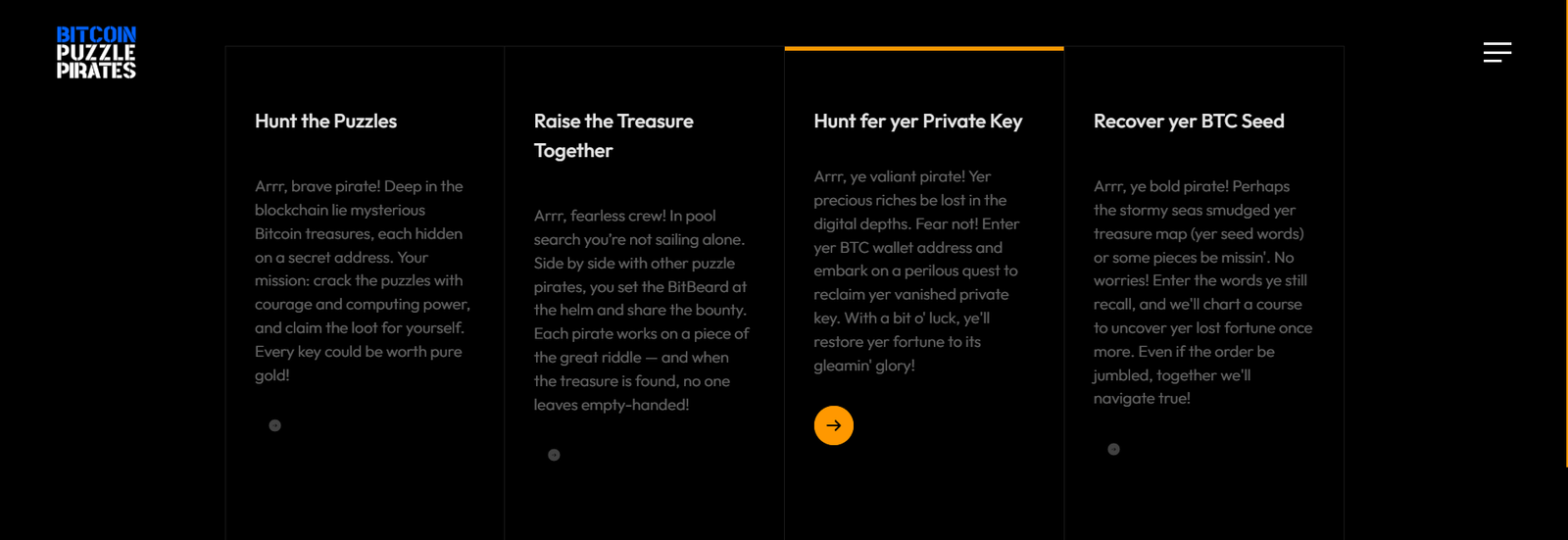
On the BitBeard homepage, you have three powerful options:

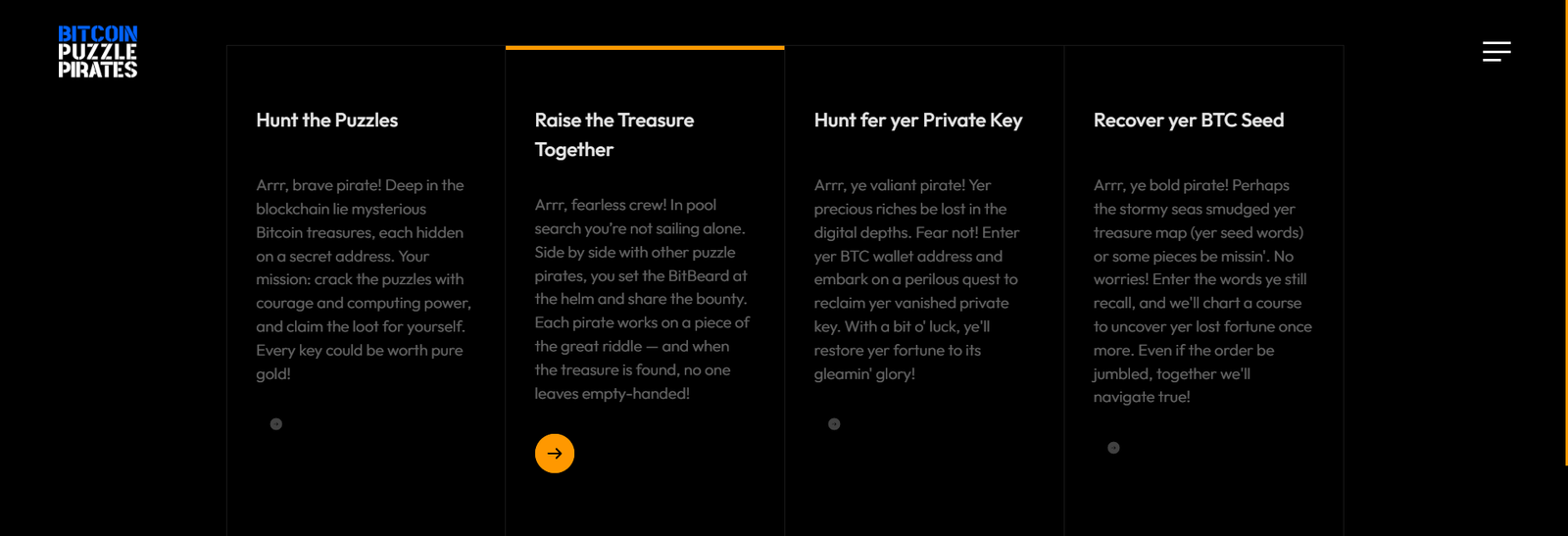
Step 4.1 Start Puzzle Search

What are Bitcoin Puzzles?

A total of 969 BTC (currently around €96 million) are hidden across 81 Bitcoin wallets, known as Bitcoin Puzzles. Whoever decrypts the private key can claim the Bitcoins.

More information at https://bitcoinpuzzlepirates.com/what-are-bitcoin-puzzles.

How it works:

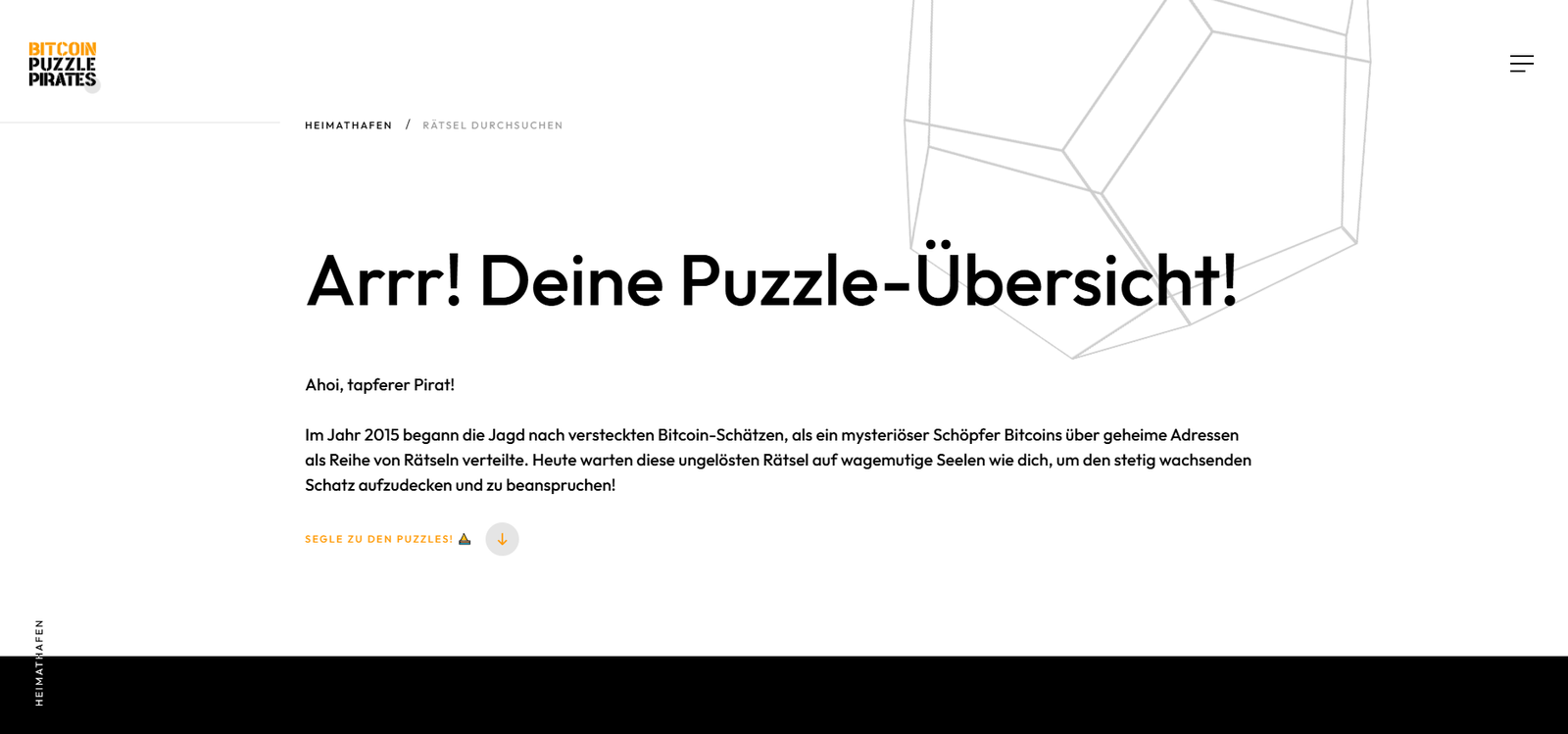
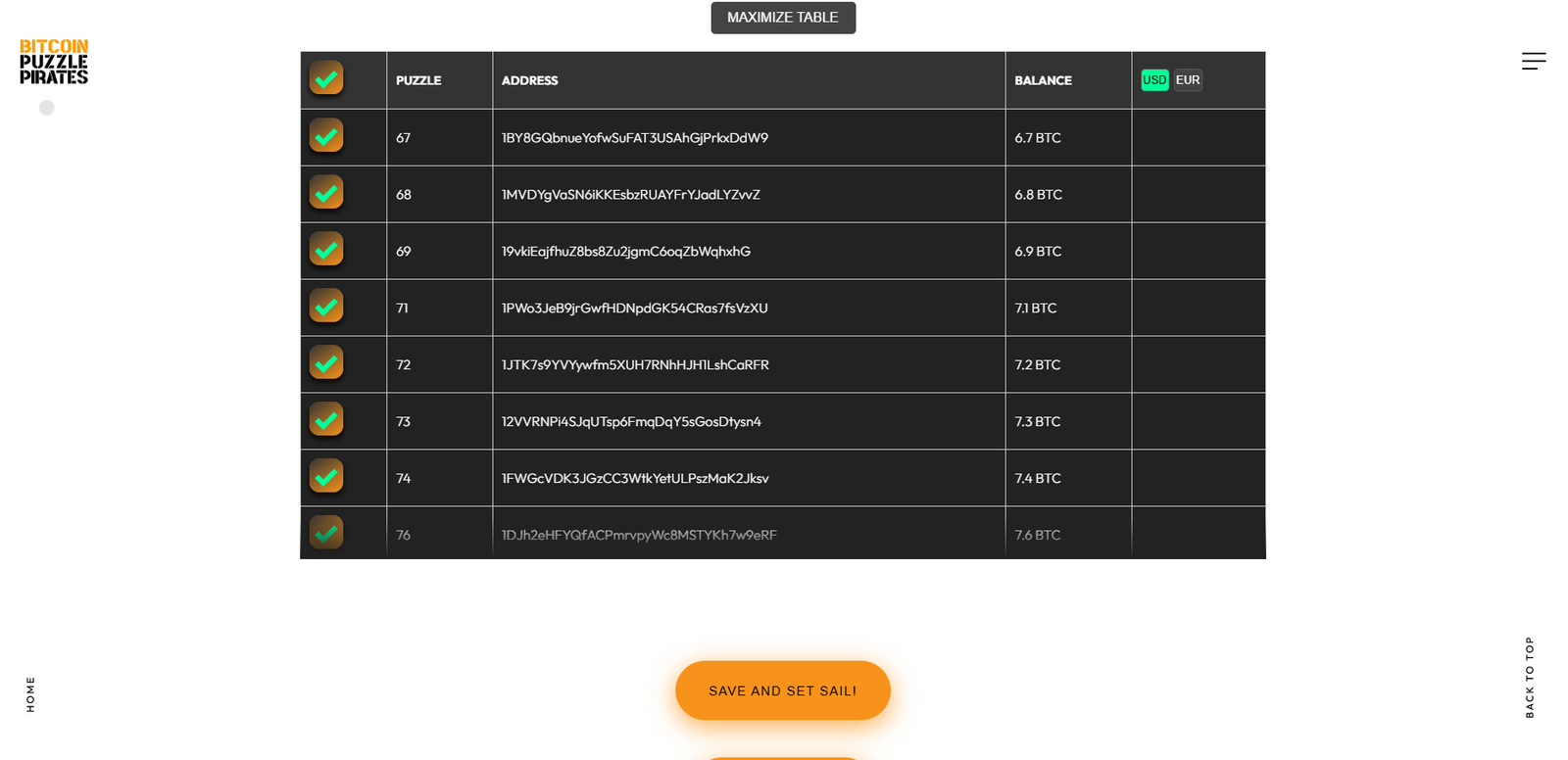
Choose “Set sail to the puzzles! ⛵” to navigate directly to the treasure list of puzzles. The list is folded by default – you can unfold it with “Maximize table” to view all the puzzles or simply select them all at the top left of the table to begin the hunt.

The BitBeard dives into action, attempting each puzzle 10 times before moving on to the next. Once all puzzles are completed, it starts over again – a tireless treasure hunter!

The BitBeard generates random private keys within the ranges specified by the puzzle creator. From these keys, it calculates Bitcoin wallet addresses and compares them to the target addresses set by the creator – because that’s where the treasures are hidden! The start and stop keys are also defined by the creator to make the hunt even more thrilling.

An example of the treasure hunt:
Puzzle 20 had the following coordinates:

  • Start key: 0000000000000000000000000000000000000000000000000000000000080000
  • Stop key: 00000000000000000000000000000000000000000000000000000000000fffff

The correct key had to be found within the range 80000 to fffff. There are 524,288 possible combinations in this range. The treasure was discovered at d2c55, and the lucky finder secured 0.02 BTC. Remember: private keys consist of characters 0-9 and a-f.

The last known puzzle, Puzzle 66, was solved on September 12, 2024, yielding an incredible bounty of 6.6 BTC!

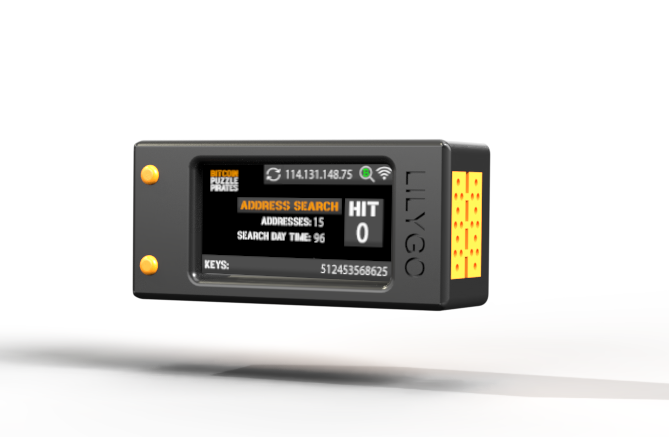
When the BitBeard strikes gold, the display shows a “1” under “HIT.” Each additional hit increases the number – so what are you waiting for? The treasures are out there! 🏴‍☠️

Step 4.2 Raise the Treasure Together

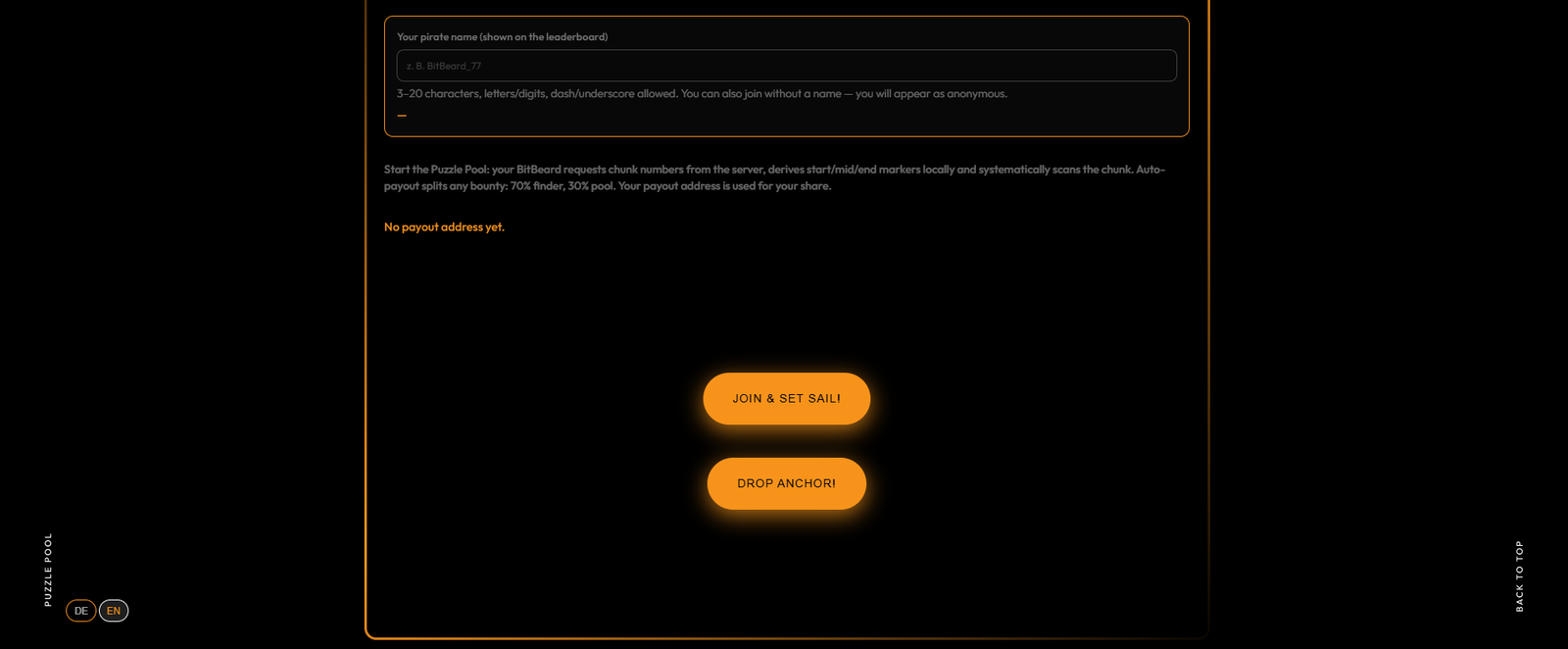
How the Puzzle Pool & AutoPay work

In the Puzzle Pool, you don’t hunt alone – the whole crew works together.
The massive search space is split into chunks. Each worker receives its own section from the server and scans it systematically. No overlap, no wasted effort.

⚙️ Crew work, done right

  • Every worker scans assigned chunks independently

  • Every successfully checked chunk counts toward your share

  • The more you contribute, the bigger your cut of the treasure

💰 Fair loot distribution

When a puzzle is cracked, AutoPay kicks in instantly:

  • 70 % of the reward goes to the finder – the worker who hits the solution

  • 30 % of the reward is shared among all pool workers
    – based on how many chunks they successfully checked

⚓ AutoPay – fast and fair

AutoPay ensures that:

  • all rewards are paid out automatically

  • funds go directly to your configured payout address

  • no manual claiming is required

No hoarding, no delays, no tricks.
Hit → split → payout. Fair, transparent, instant.

🏴‍☠️ That’s how a real pirate crew sails.

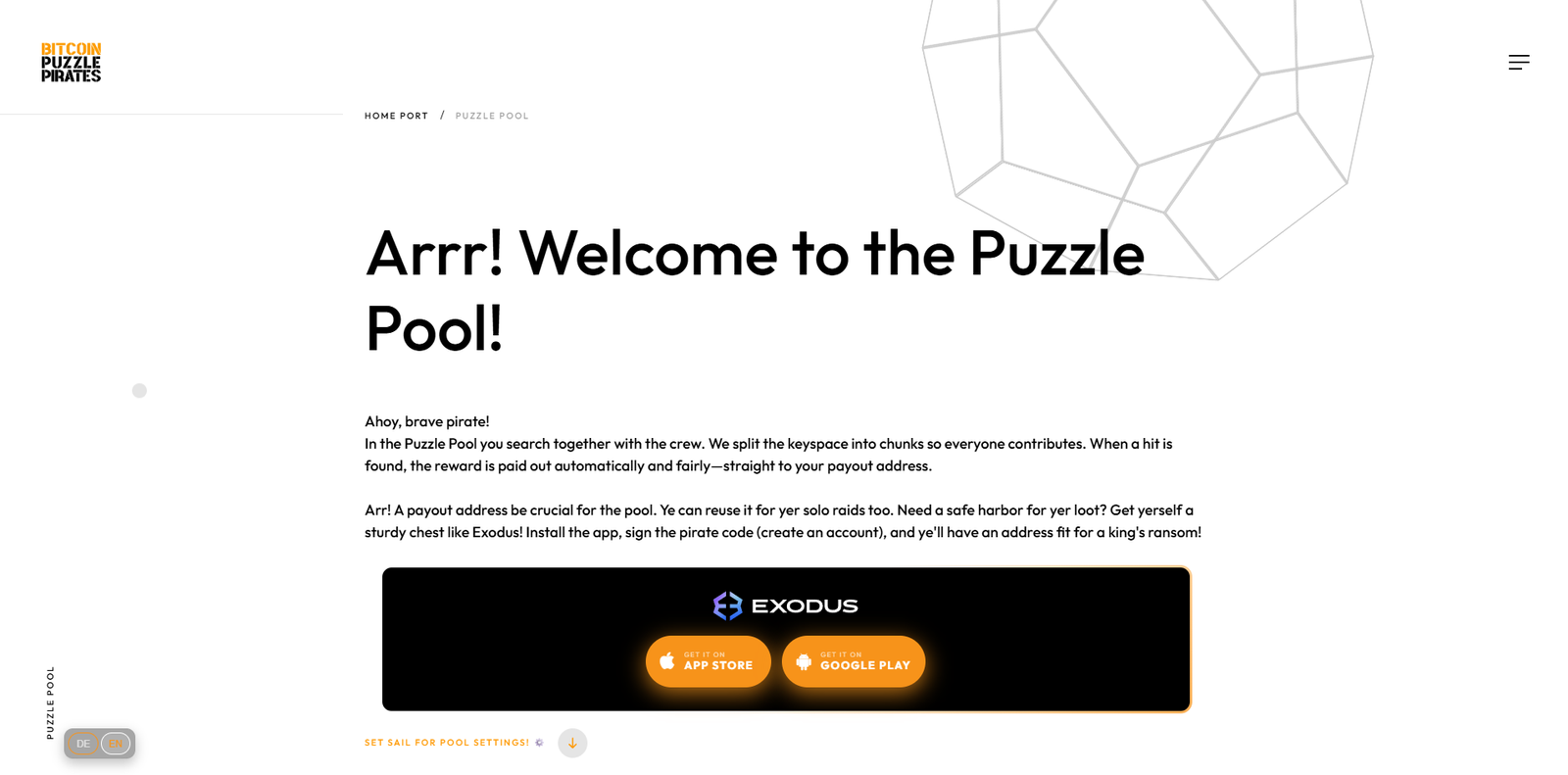
No Bitcoin wallet yet, sailor? No worries!

Before you sail with the crew, you’ll need your own Bitcoin wallet – a safe chest for your hard-earned loot.
If you don’t have one yet, Exodus is a fine choice: easy to set up, secure, and perfect for fresh pirates.

Download the app, create your wallet, and you’ll receive your very own Bitcoin address – ready to collect rewards and glory.
Of course, any Bitcoin wallet will do – as long as your treasure reaches you safely.

⚓ Once your wallet is ready, the hunt can begin.

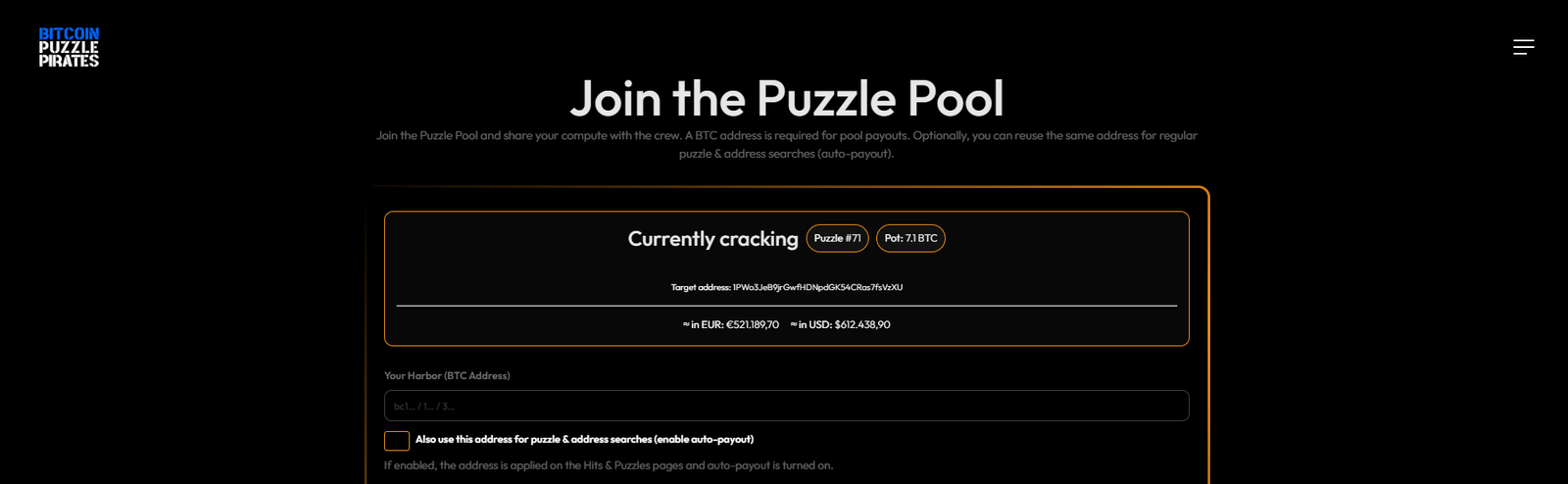
Your harbor for the loot – the payout address

Here you enter your Bitcoin address – your personal harbor where the pool’s treasure is delivered once a puzzle is cracked.
Without a valid address, no gold can be paid out, so double-check it before setting sail.

If you like, you can also use the same address for solo puzzle searches and address searches.
Just tick the box and the address will be saved and reused automatically – including auto-payout, nice and easy.

⚓ One address, many hunts.
Set it once and you’re ready for pool, solo, and everything in between.

Your name among the crew (optional)

Here you can choose a pirate name for your worker – this is how you’ll appear on the leaderboard.
Fearsome, legendary, or simple – the choice is yours.

Not in the mood to name it? No worries.
If you leave the field empty, the crew will automatically use the beginning and end of your wallet address as your name.
You stay anonymous, but still clearly identified on deck.

With a click on “Join & Set Sail!”, everything is saved and the search starts immediately.
The anchor is up and your BitBeard gets to work.

⚓ Ready the ship – the hunt begins.

Step 4.3 Search Private Keys for BTC Wallets

Function:
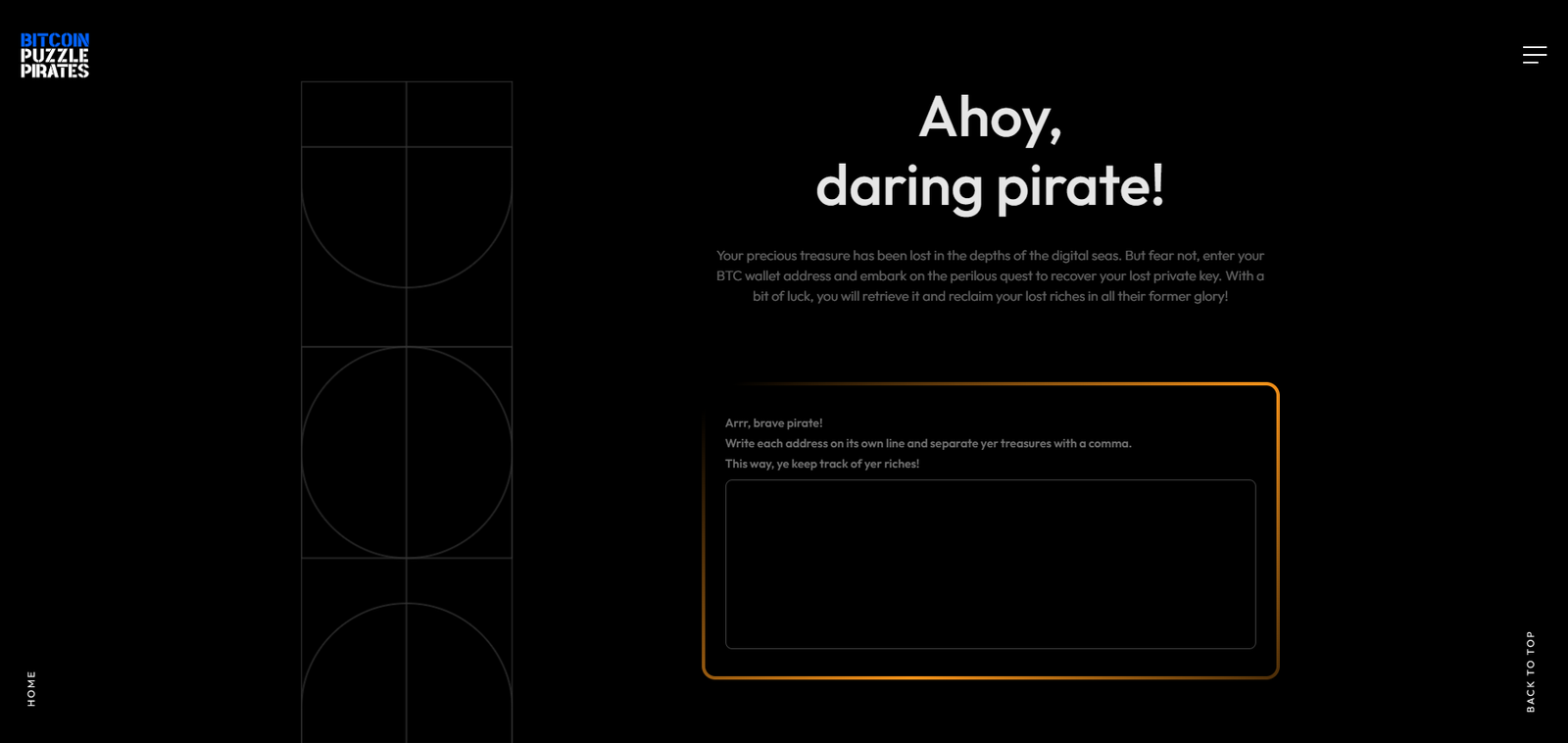
Recover private keys for lost wallet addresses.

How it works:

  • Enter your wallet address. Separate multiple addresses with a comma “,“.
  • Click “Save and Set Sail!” to start.
  • The progress screen on the device will show the search status.
Did you know?
Over 1,000,000 BTC are lost due to missing private keys or seed phrases.
More details at https://bitcoinpuzzlepirates.com/lost-bitcoin-treasures-the-dormant-wallets-worth-billions.

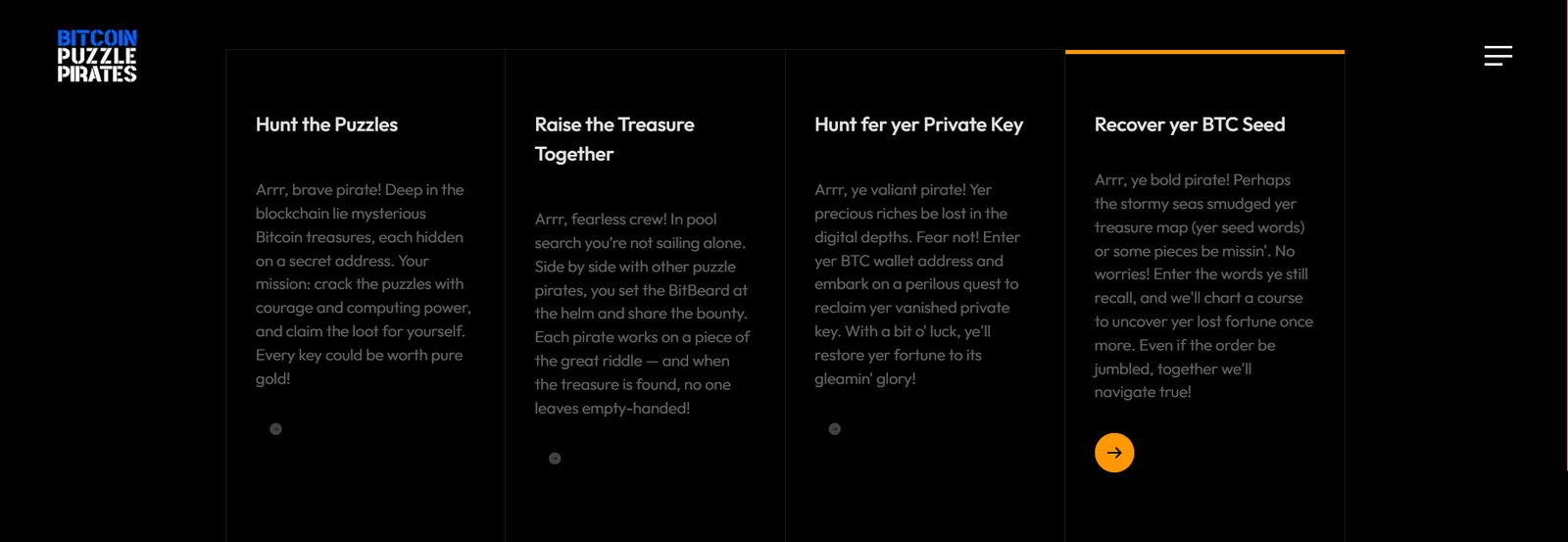
Step 4.4 Seed Recovery

Function:
Recover or verify your seed phrases to regain wallet access.

Options:

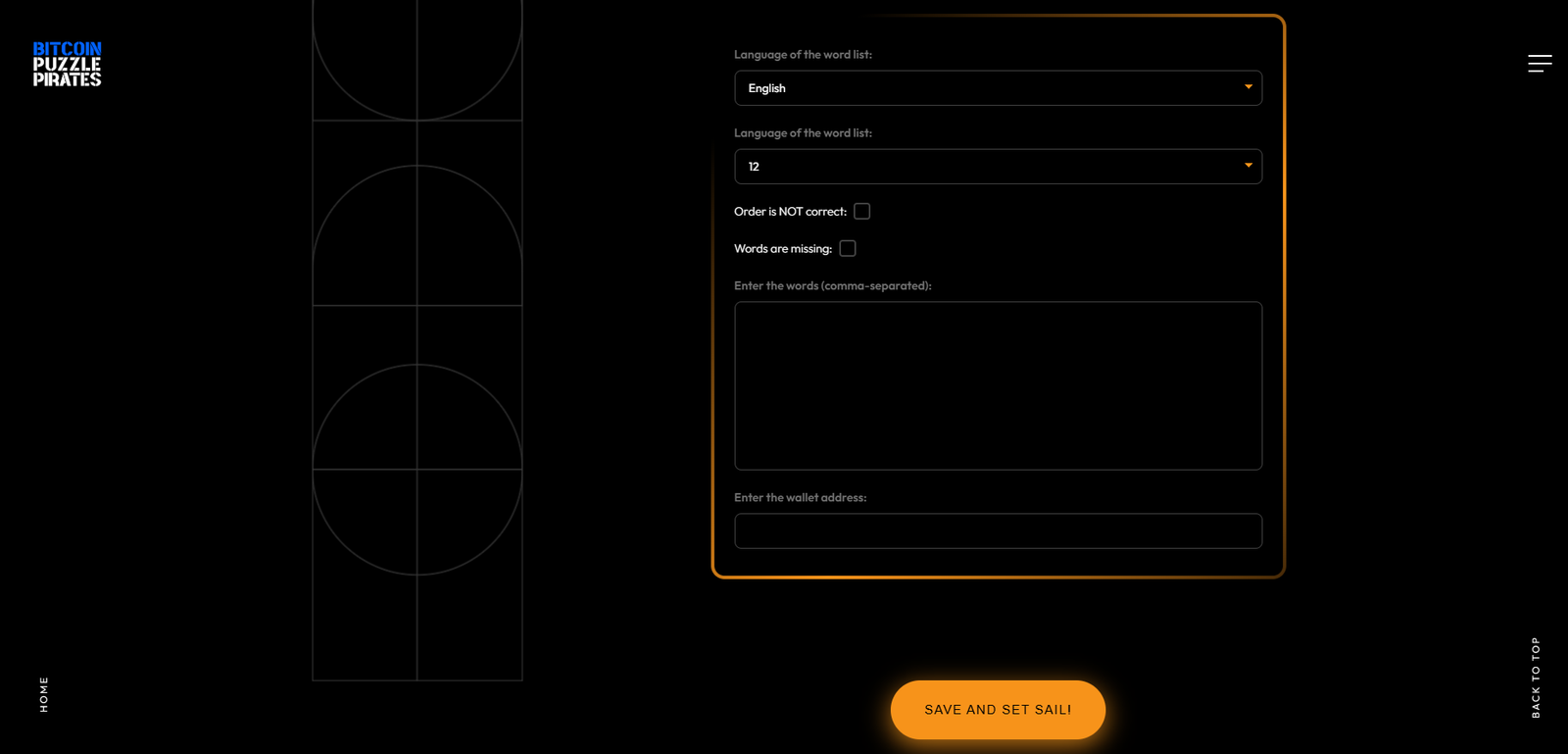
  • Select Language: Choose from 10 available languages.
  • Word Count: Choose between 12, 15, 18, 21, or 24 words.
  • Missing or unordered words: Check appropriate boxes if applicable.

How it works:

  1. Enter Seed Words: Separate them with spaces.
  2. Enter Wallet Address: Input the wallet address to verify.

Start:

  • Click “Save and Set Sail!” to start recovery.
  • The progress screen on the device will display recovery status.

Seed Recovery – An Adventure for True Treasure Hunters! 🏴‍☠️

The BitBeard is your loyal companion when it comes to rescuing lost or scrambled seed words. Each language has its own treasure chest of 2,048 seed words, and the BitBeard uses them to systematically replace, complete, and organize your missing puzzle pieces. Here’s how the adventure unfolds:

  1. Word Verification:
    The BitBeard checks each word you enter and compares it to the list of 2,048 possible words. If a word doesn’t match, it suggests a suitable replacement – a true riddle master!
  2. Filling in Missing Words:
    Missing a few words in your seed? No problem! The BitBeard systematically adds words from the list until the map is complete.
  3. Sorting the Order:
    Are the words out of order? Don’t worry – the BitBeard tries every possible combination to find the treasure.
  4. The Hunt for a Match:
    Once the BitBeard finds a possible combination, it verifies it against the provided wallet address. The search continues until a match is found – and then the treasure is yours!

A Few Notes for Brave Pirates:
The more words are missing or the more chaotic the order, the longer the search will take. But the BitBeard never gives up, because every treasure is just waiting to be claimed by you!

Get ready for an adventure full of patience, precision, and pirate skill. With the BitBeard by your side, no treasure is out of reach! 🪙⚓

Step 5 – Operation and Notes

Screen Views and Navigation

After configuration, your BitBeard provides several practical screen views:

  1. Current Bitcoin Price – Displays the real-time BTC price.
  2. Current Time – Handy to always keep track of time.
  3. QR Code for Hits – Scan this QR code to view results or found keys directly on your phone.
  4. QR Code for Settings – Scan this QR code for quick access to the settings page.
  5. Calculation Progress – Displays the progress of calculations for puzzles, private keys, or seeds.

Additional Information about the Top Bar:
The top bar contains key status information:

  • WIFI Connection: A WIFI icon indicates whether the device is connected to the network (no slash) or not (with a slash).
  • Search Status: A magnifying glass with a red or green “B” indicates whether the search is active (green) or paused (red).
  • IP Address: The device’s IP address is displayed. You can enter this in your browser (e.g., 123.456.789/index) to access the settings page if you cannot scan the QR codes. Important: Your phone or computer must be on the same network.
  • Update: If an update is available, you’ll see this symbol ↻ next to the IP address. The BitBeard only checks for updates when it restarts. So, what should you do? Simple:
    • Step 1: Disconnect the BitBeard from the power supply or press the hidden reset button briefly – it’s like bringing your ship into a safe harbor before setting sail again.
    • Step 2: After restarting, the BitBeard will automatically check if a new firmware version is available.
    • Step 3: Go to the BitBeard’s update page and click “Check for Updates.” If an update is available and you want to install it, you can start it directly from the page.
    • Important tips for pirates:
    • Ensure your WIFI connection is stable – a shaky network is as useful as a torn sail!
    • Let the BitBeard complete the update without interruption – otherwise, your ship might drift into a digital storm!
    • With a freshly updated BitBeard, you’re ready for new adventures and always have the latest software on board. Set sail and keep your crypto compass steady! 🏴‍☠️


Button Assignments and Controls

Your BitBeard features two main buttons and a hidden reset button:

  1. Button 1 (Top Button):
    • Single Click: Switches to the next screen view.
    • Double Click: Rotates the screen orientation.
    • Long Press (5 seconds): Resets the current WIFI settings without affecting other configurations.
  2. Button 2 (Bottom Button):
    • Single Click: Also switches to the next screen view.
  3. Both Buttons Simultaneously (Long Press / 5 seconds):
    • Deletes all stored data, including WIFI info, seed data, and puzzle data.
    • Resets the device to factory settings.
    • Automatically restarts the device.
    • Note: The license key is not deleted, as it is permanently tied to the device.
  4. Reset Button (Hidden):
    • Short Press: Restarts the BitBeard.


Helpful Tips

  1. Monitor WIFI Connection:
    Keep an eye on the WIFI icon in the top bar to ensure your device is connected to the network.
  2. Use the IP Address:
    If you cannot scan the QR codes, enter the displayed IP address and “/index” into your browser to access the settings. Important: Your device must be on the same network as the BitBeard.
  3. Perform Regular Updates:
    Through the BitBeard’s update page, you can easily update the BitBeard over WIFI.

Congratulations, Crypto Buccaneer!

Your BitBeard is now fully operational. We wish you great success in your treasure hunt, whether through puzzles, lost keys, or seeds. And remember: keep your device secure and double-check your inputs – this is about real digital treasures! 🚩

Leave a Reply